

Connecting with Creators at Affiliate
In this article, we will teach you how to message and contact your Affiliate Creators in the Seller Center.
As a Seller, you can message chosen Creators to collaborate through the Affiliate program. The messaging tool is a great way to freely communicate with Creators and strengthen your partnership!
Accessing Creator Messages in Seller Center Desktop
You can access all your current Creator messages at the top portion of your screen in the Affiliate Center. The Creator messages button will also show the amount of unread messages you currently have.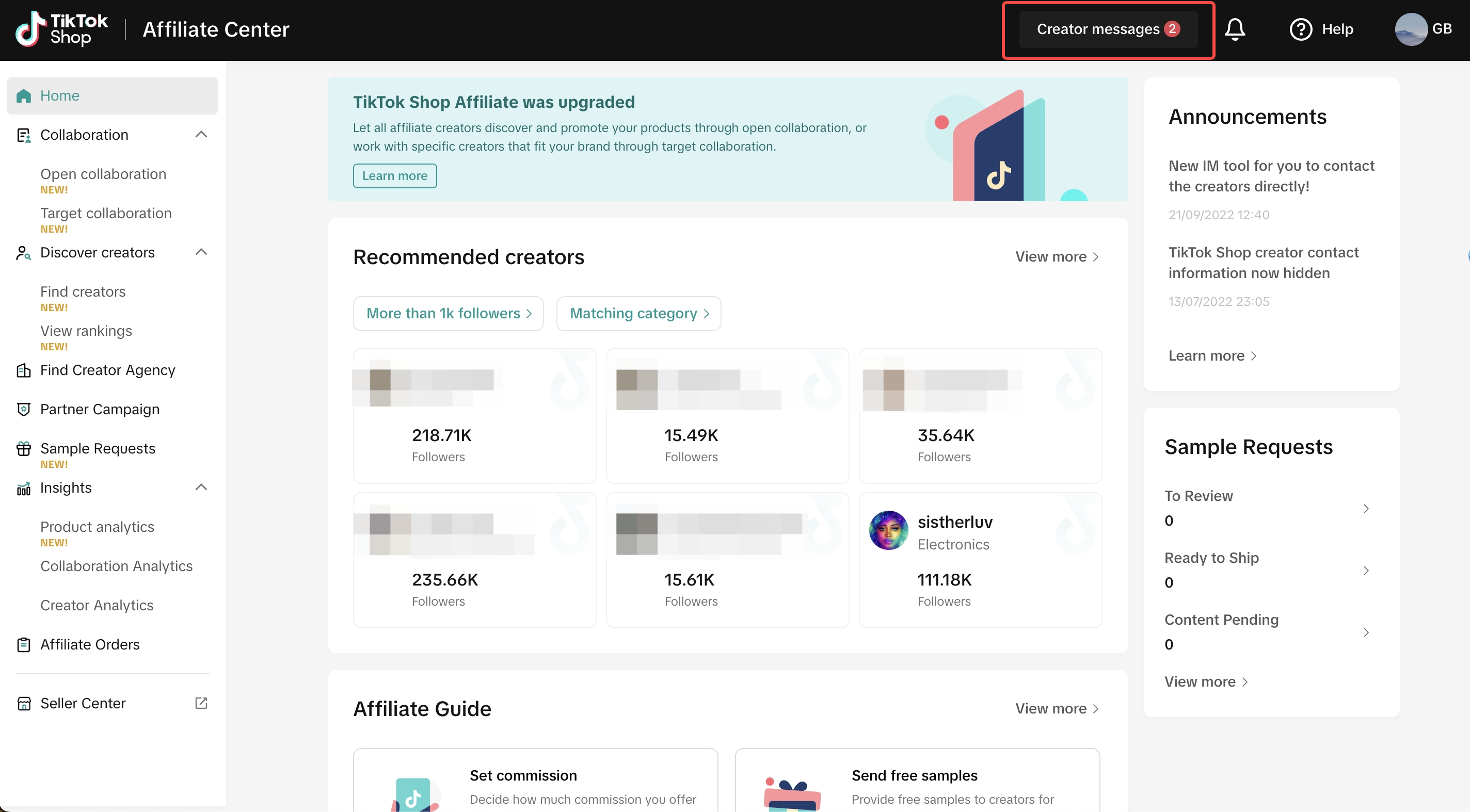

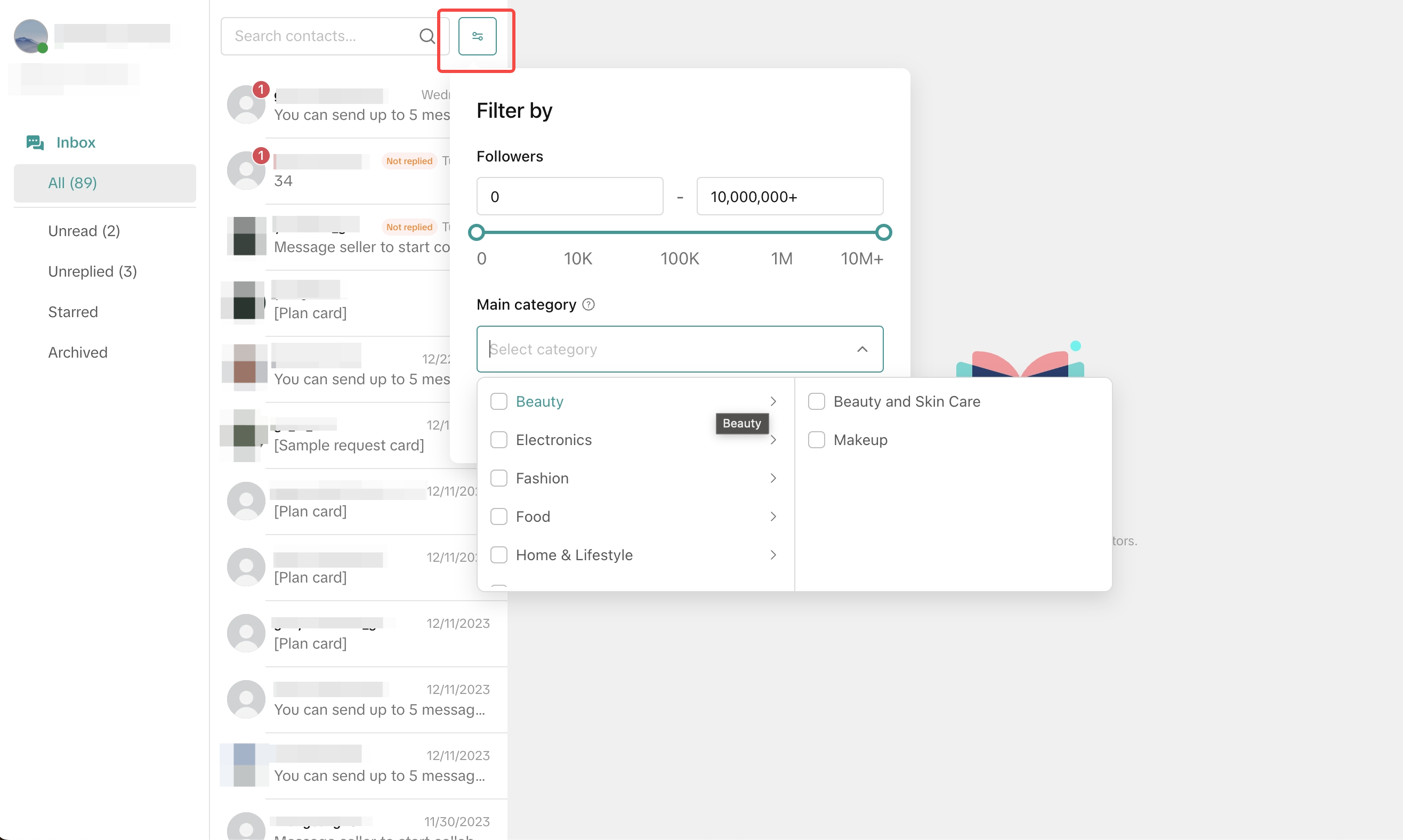
Filtering your Messages
You can filter the type of messages you want to see according to these factors:- Creator's Amount of Followers
- Creator's Main Category: This is based on the Creator's generated category from the Find Creators page.
"Starred" Messages
Clicking on the three dots when your mouse is hovering in the preview will open up two options: Add to starred will add your chosen conversation to the Starred folder under Unreplied. Additionally, Starred messages are highlighted with a gold star in the preview section.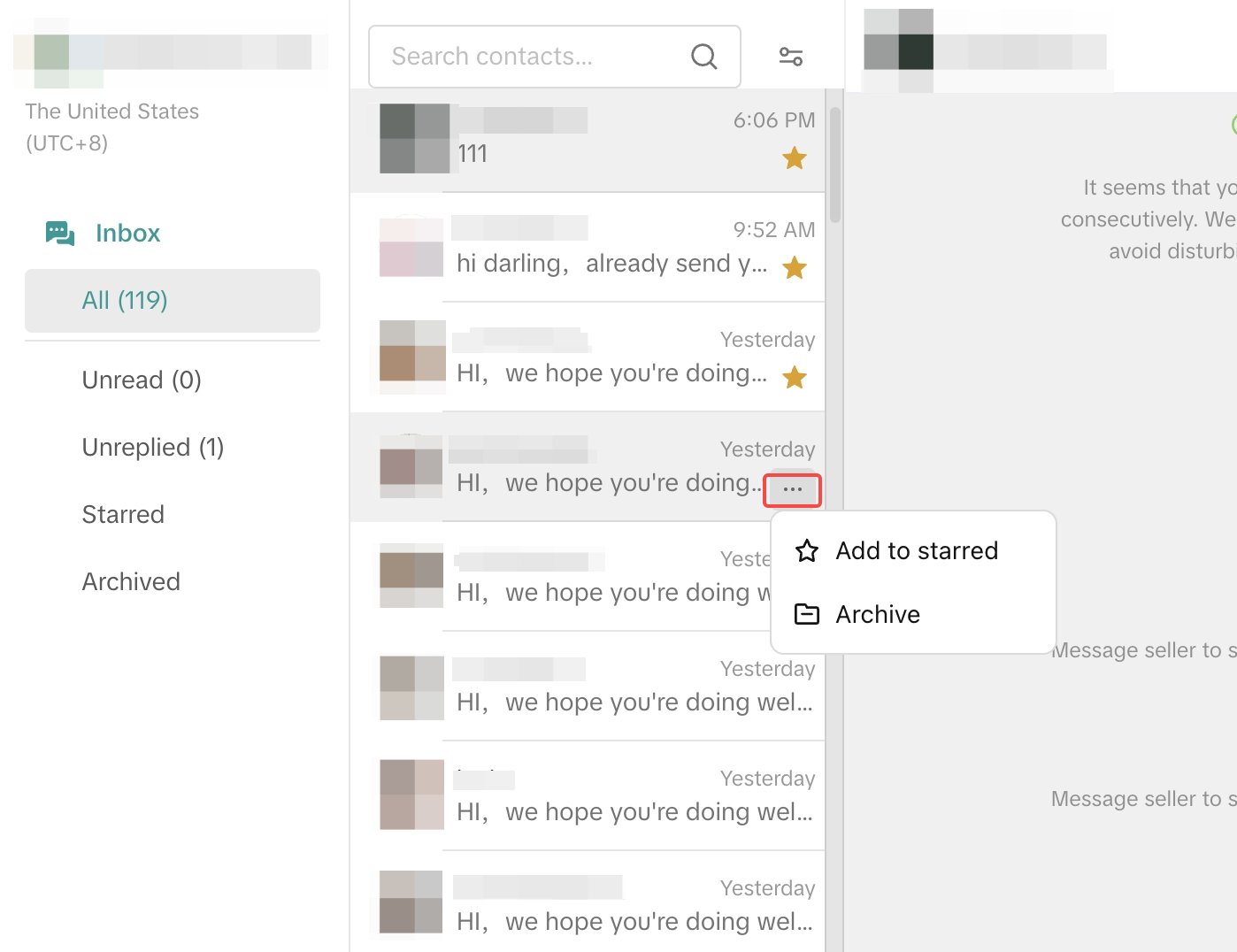
Archiving Messages
Clicking on the three dots can also be used to archive any of your old or unwanted messages in your inbox. Archived messages will be stored inside the Archived folder.
Blocking Messages
Yes, you can block Creator accounts from messaging you by tapping on the 3 dots beside their username as shown below: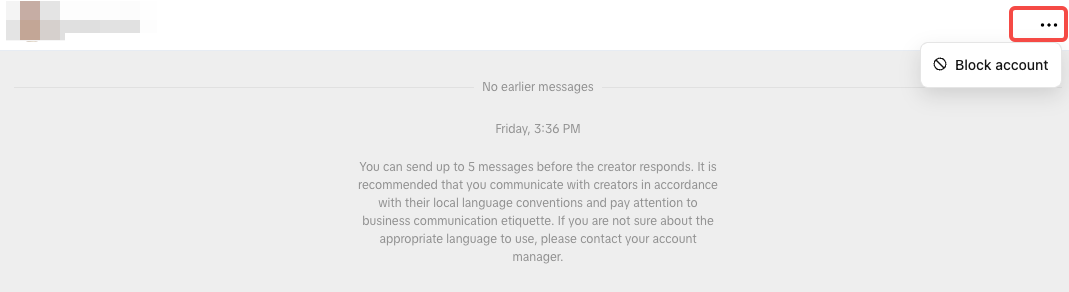

Entering a Conversation with a Creator
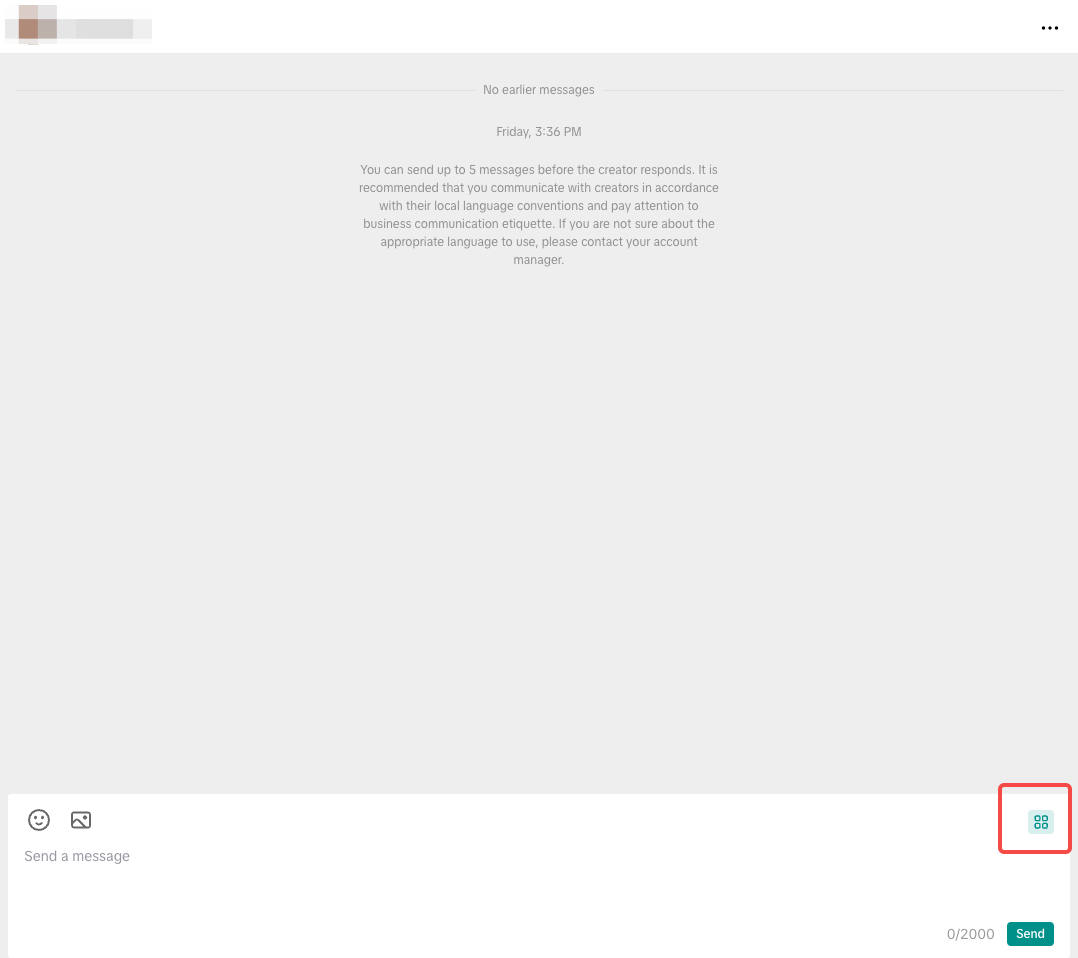
Upon clicking on one of the messages or entering a conversation with Creator, the messaging tool will look like this without any messages. You can communicate with the Creator by typing below, sending GIFs or pictures at the bottom left-hand side.Click on the button with four boxes below to access the Creator's profile and your Affiliate Collaboration tools.
Creator Profile
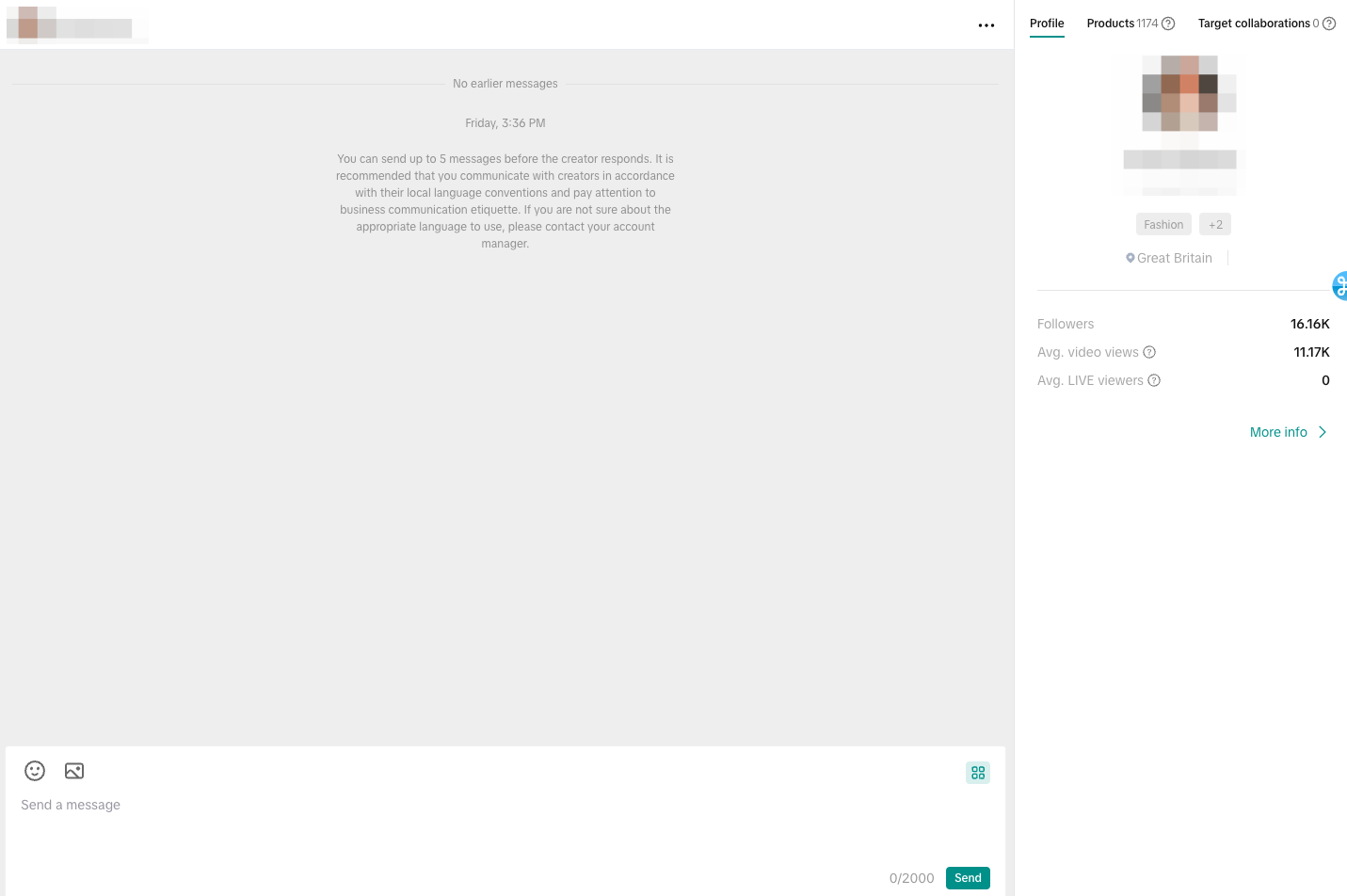
You can check the Creator's details upon clicking the button. These details include:- Main Categories: The Creator's main product categories will show up under their username and profile picture
- Location
- Followers
- Avg. Video Views: The average number of views of this creator's product videos posted in the last 30 days
- Avg. LIVE Viewers: The average number of viewers of this creator's e-commerce LIVE videos in the past 30 days.
Products
In this section, you can see all the available products that the Creator can use for their Affiliate Content. Both available Open and Target Collaboration products will be shown in this section.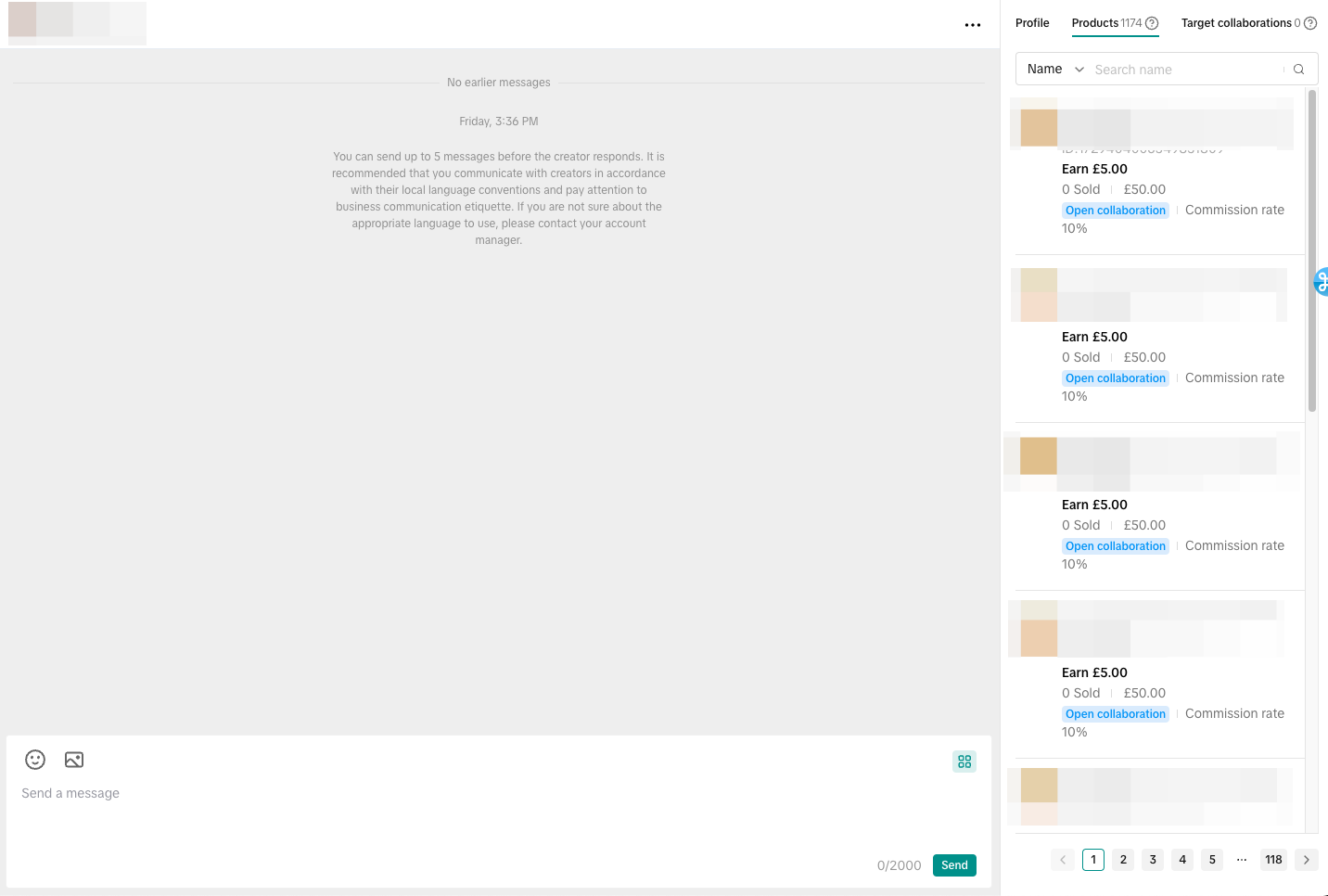


Target Collaboration Invites
Lastly, you can check all the current Target Invitations that the Creator is a part of. If the Creator is not a part of any ongoing Invitations, the Seller can create a new invitation for the Creator.

Message Creators via Find Creators
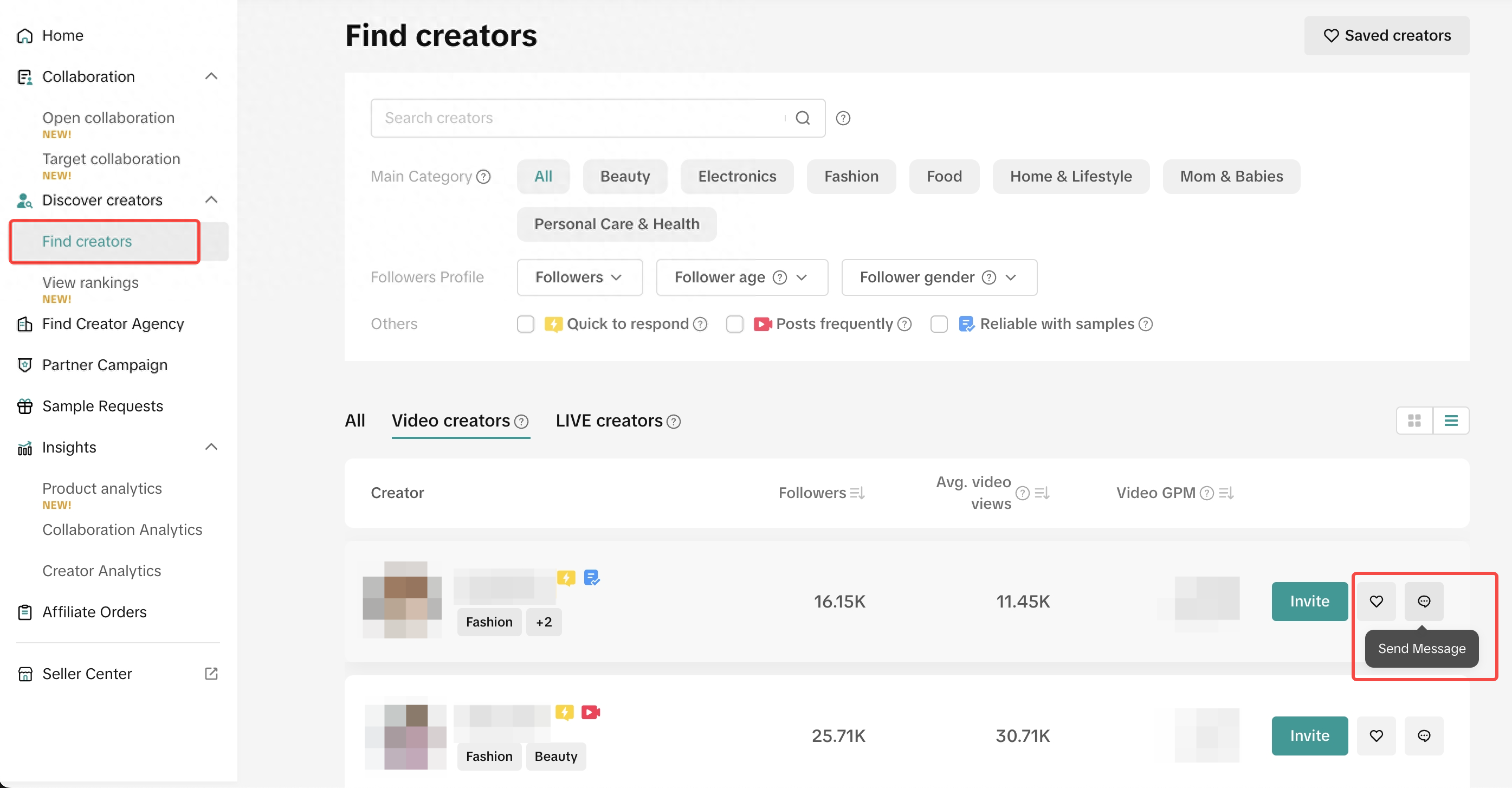
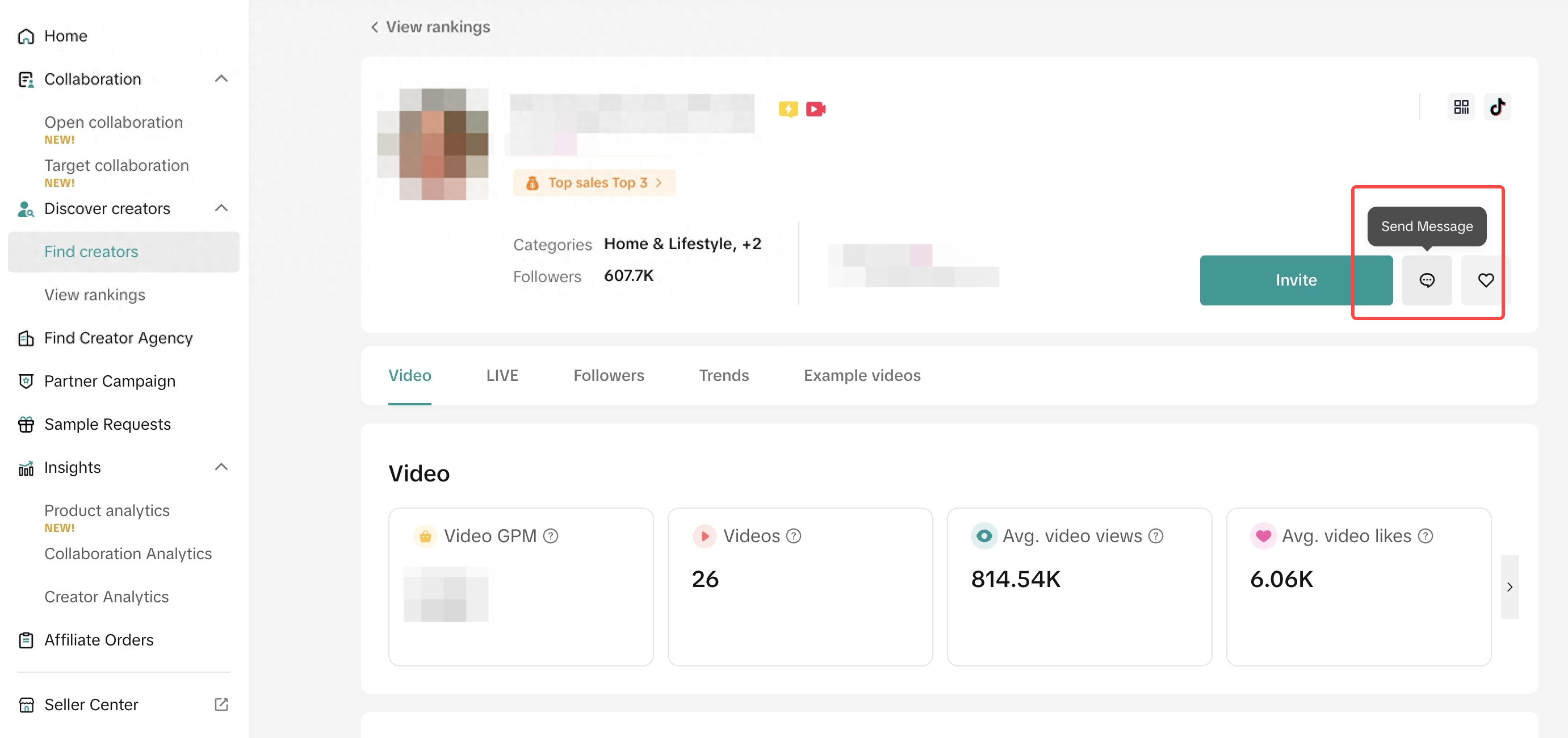
On the Affiliate Homepage on Desktop, you can initiate new conversations with Creators by searching them on the Find creators tab.- Step 1: Access the Find creators page at the left-hand side menu as highlighted in the photo below
- Step 2: You can message your chosen Creator by clicking on the Send Message button at the right-hand side of the screen
Batch Message
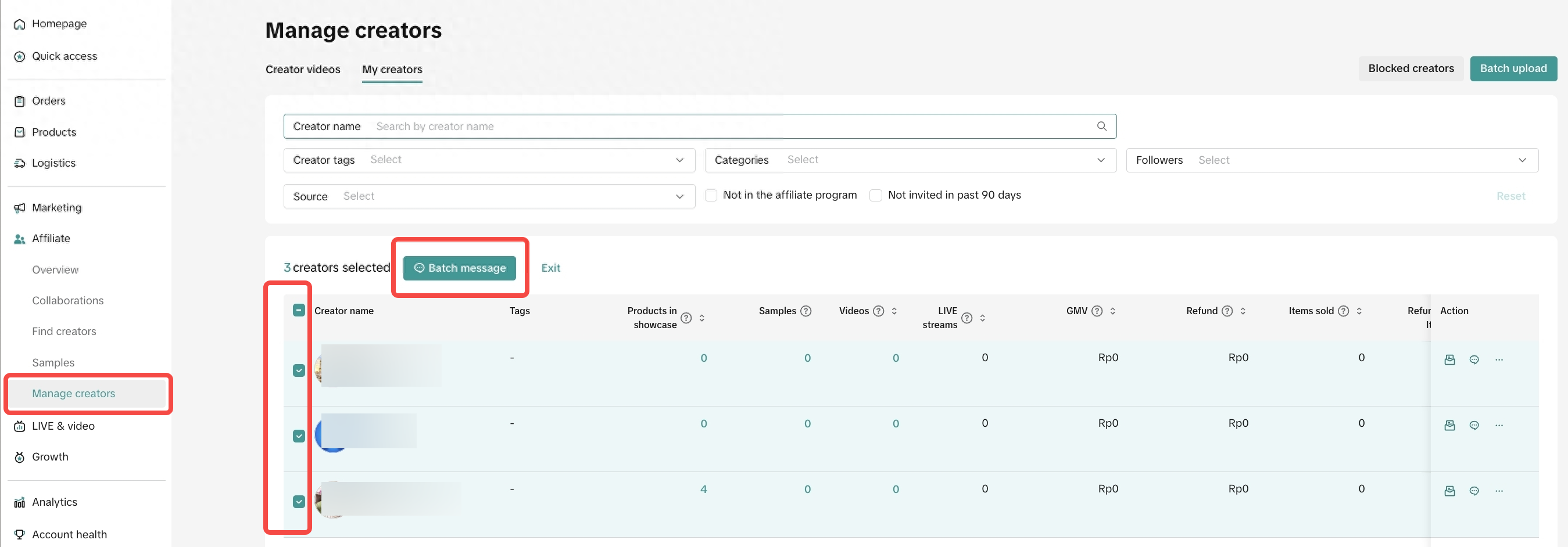
If you want to send messages to multiple creators at once, simply:- Head to Manage Creators page
- Select creators you want to reach out
- Click Batch Message
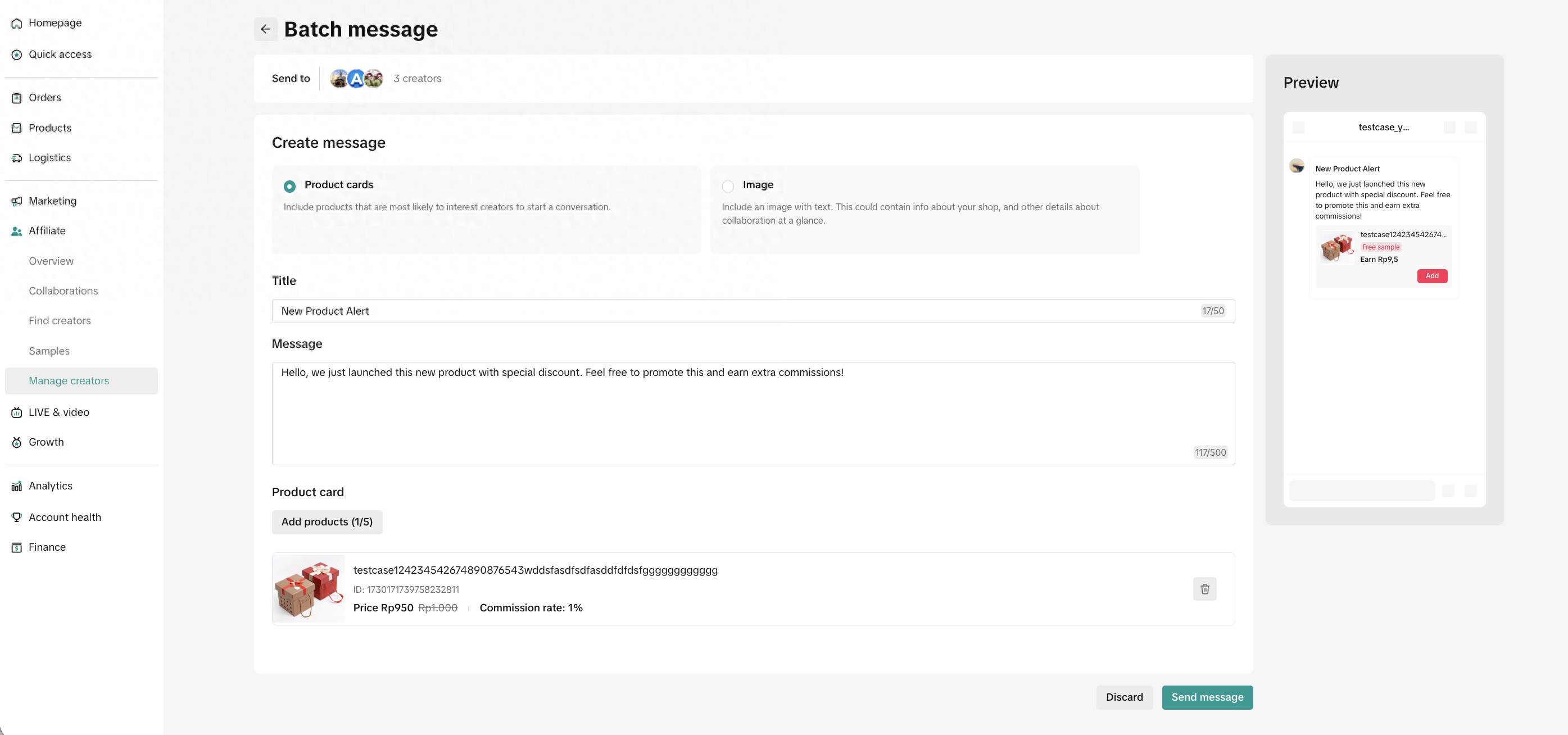
Tips: Highlight special products, such as new arrivals or unique items, to make your messages more engaging and encourage creators to promote them.
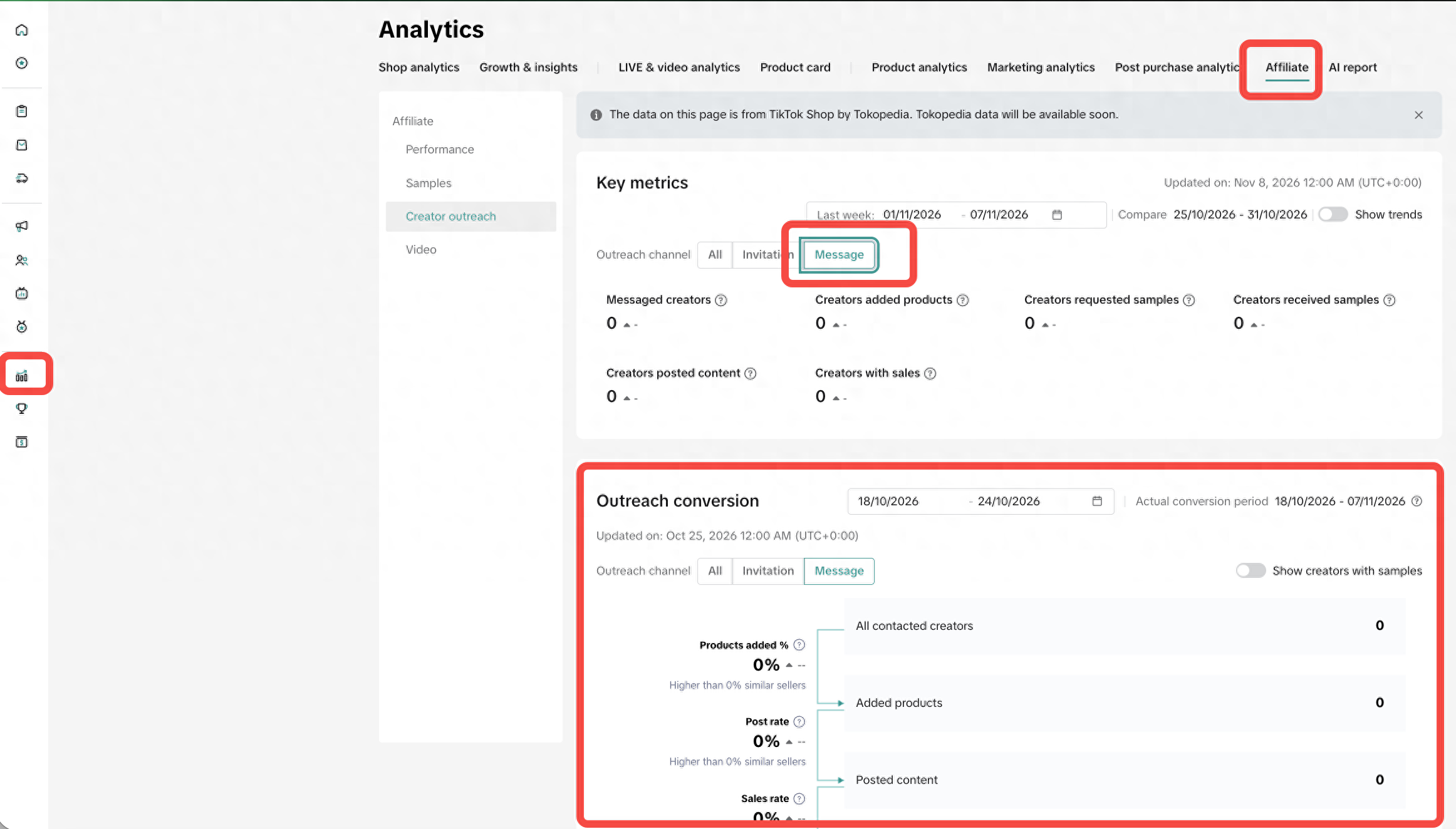

Creator Message Quota
Sellers have a weekly quota for contacting creators through Target Collaboration and Creator Message. This quota represents the number of creators a seller can reach out to each week and only applies to creators the seller has not contacted before.How does the weekly quota work?
Note: This quota will only take effect after Oct 12, 2026. Any Target Collaboration invitations or messages sent before that date will not be affected.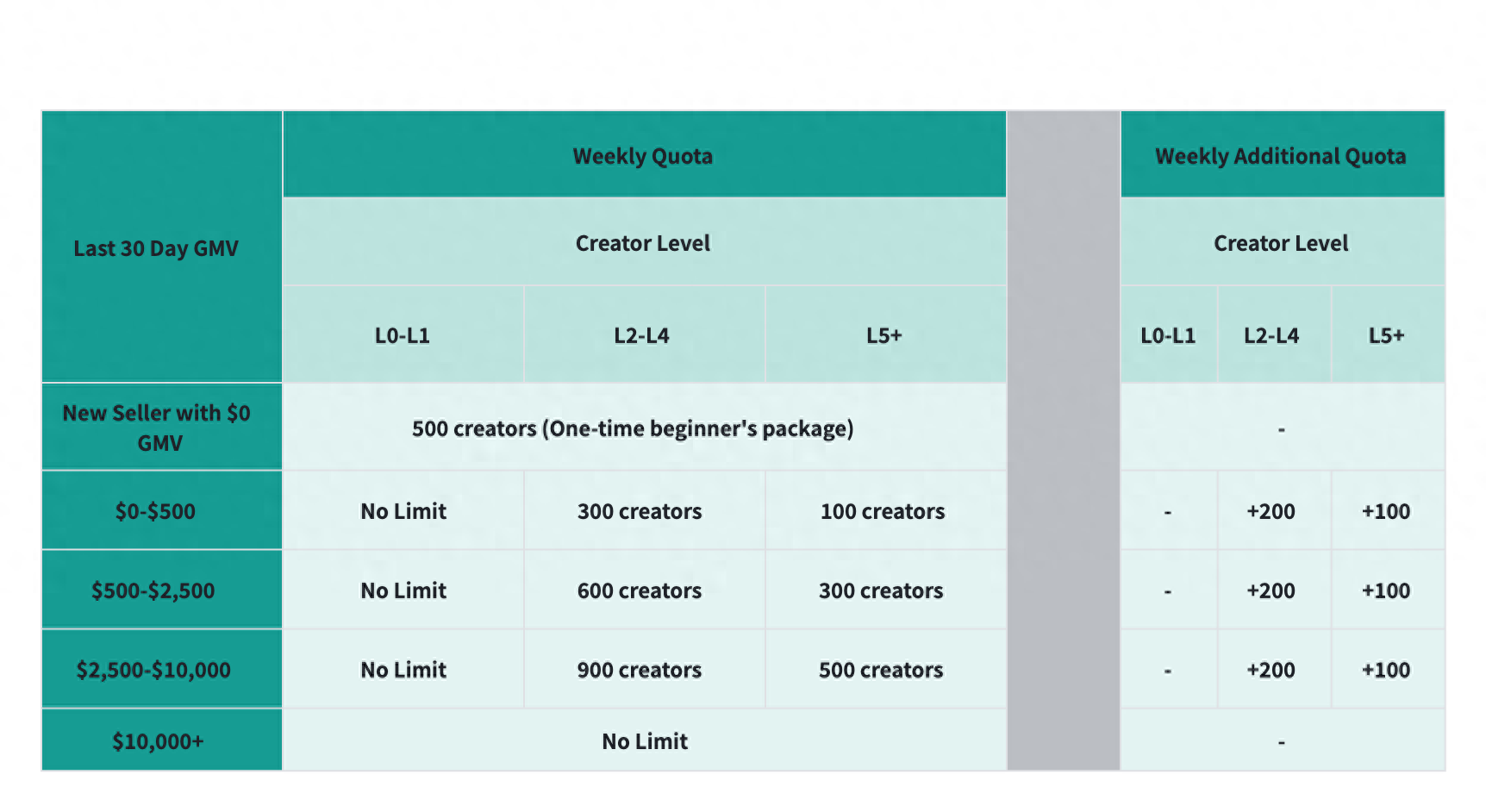
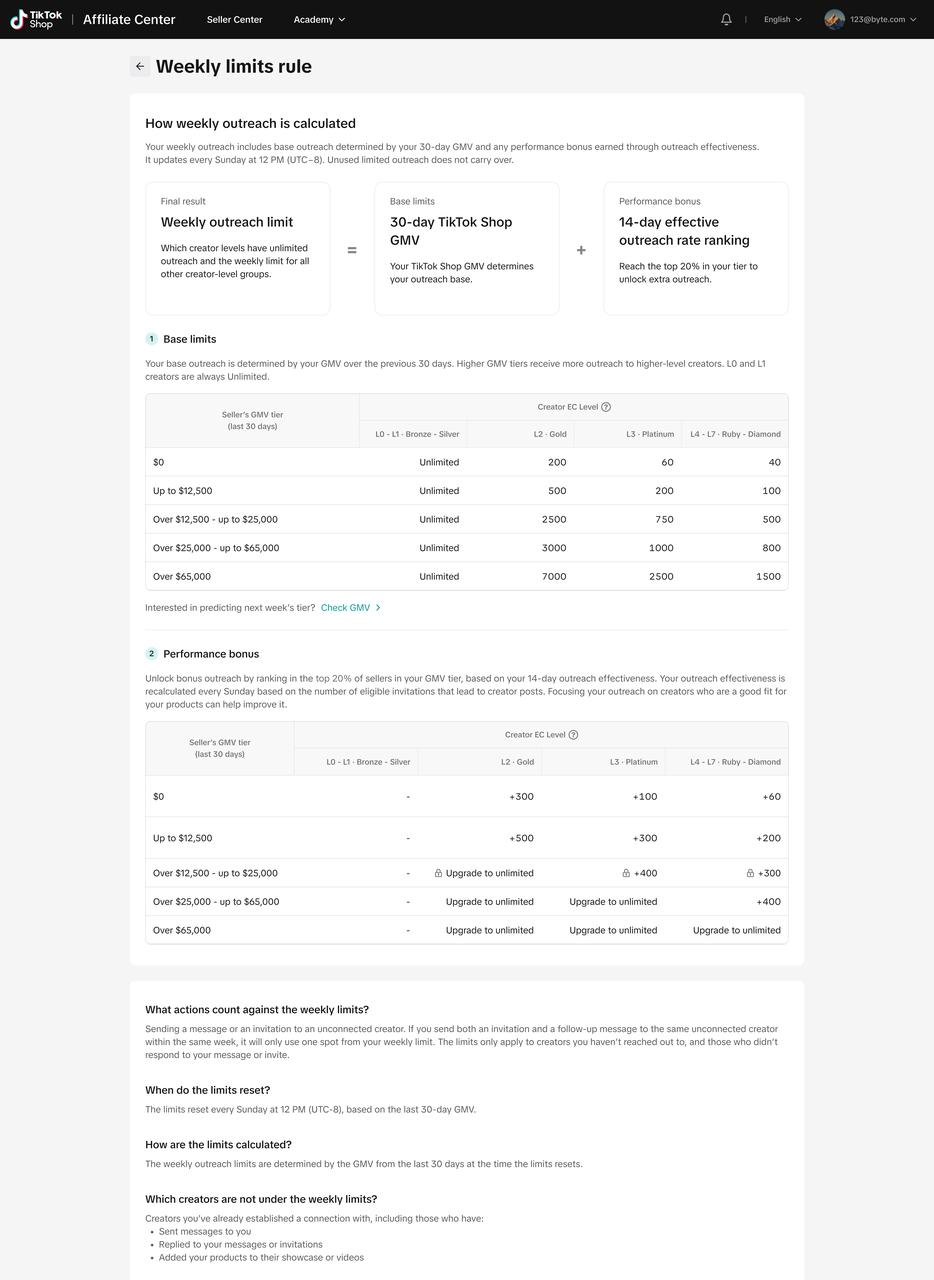
- The weekly quota is based on the seller’s last 30 days GMV, which means sellers may unlock more quota as their GMV increases.
- The quota resets every week. Any unused quota from the current week will not carry over to the next week.
- Example: If a seller has a weekly quota of 100 creators and uses only 50 in one week, the quota will reset to 100 the following week. The unused 50 will not roll over.
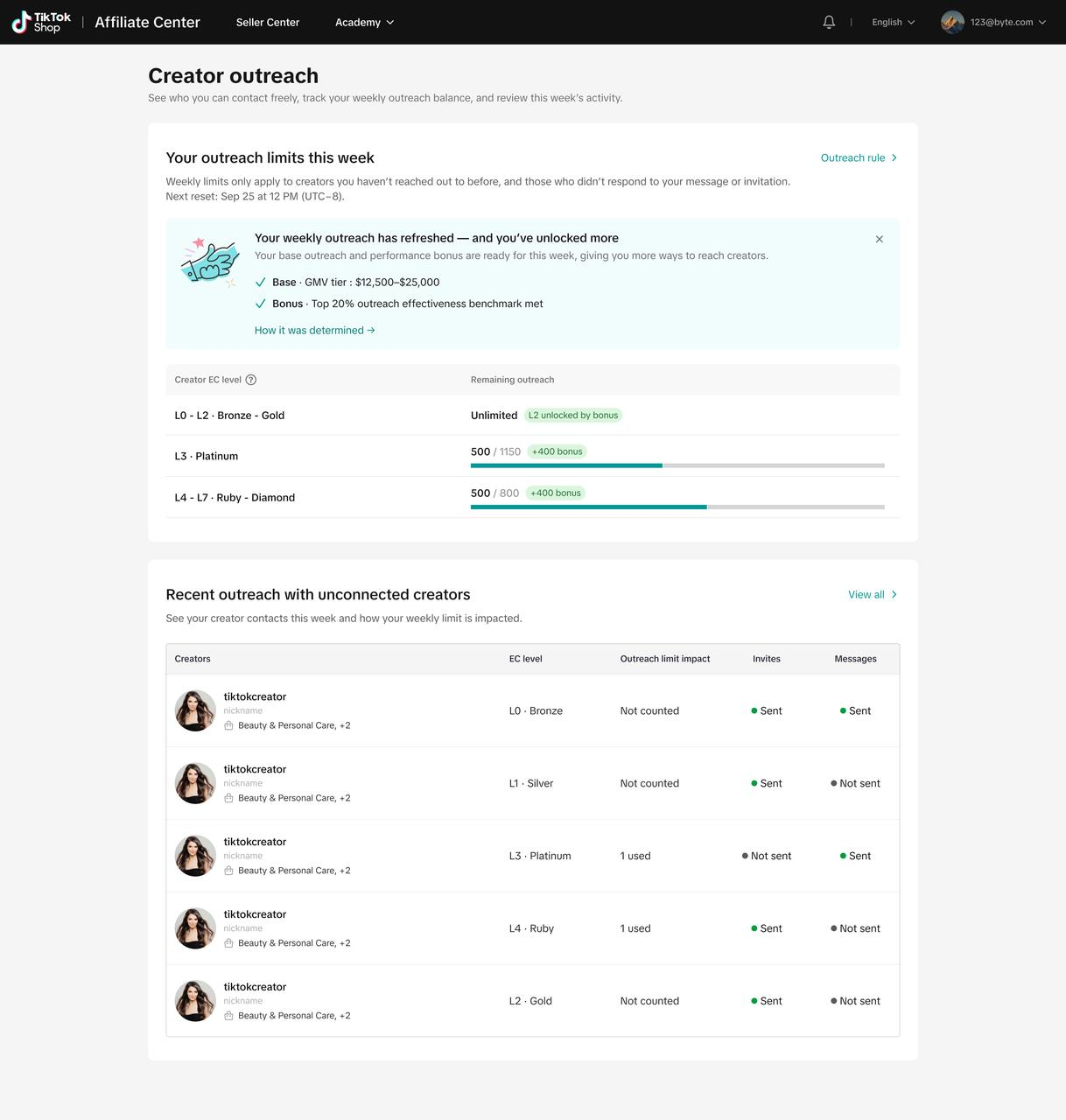
- Sellers who perform well and rank in the top 20% based on their 14-day outreach effectiveness, may be rewarded an additional quota on top of their base weekly quota. Performance is evaluated weekly, based on how effectively their outreach leads to creator engagement.
- Example: If a seller has a base weekly quota of 300 for L3–L4 creators and qualifies for the reward, they may receive an additional 200 quota in the following week, allowing them to contact up to 500 creators in total.
- Note: Because performance is reviewed every week, reward quota is not permanent. If performance declines in a later week, sellers may lose the additional quota.
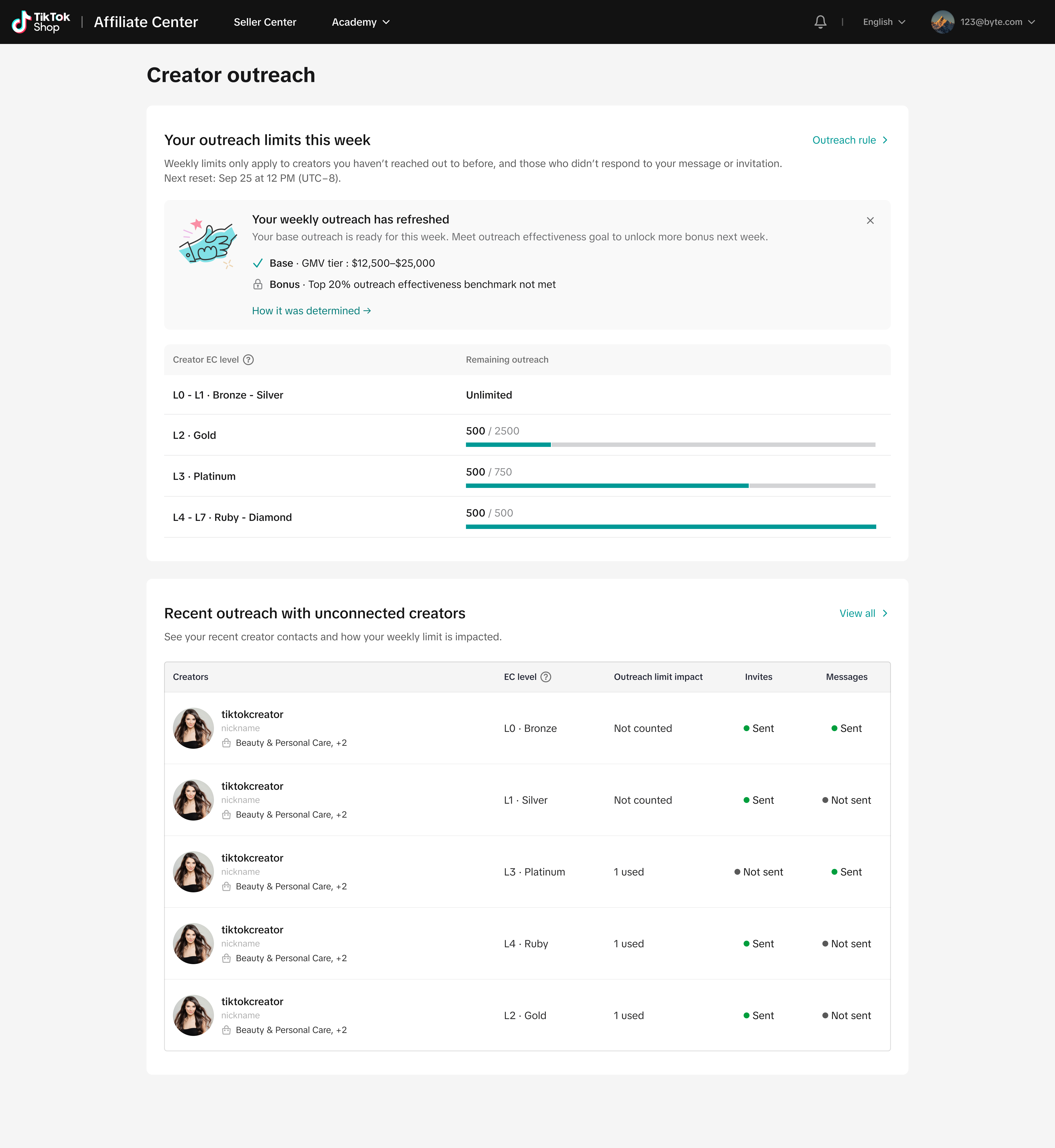
| Sellers can view their quota details by accessing the page through the Find Creator page. | On this page, they can check the available quota for each creator level they are eligible to contact. | The system also reviews each week whether the seller qualifies for additional reward quota. | Sellers can also find more detailed information about quota limits and how the quota is calculated. |
 |  |  |  |